jmp
jmp helps you jump from search results, command output, and recent history straight into your editor.
It is built for everyday workflow navigation: search across files, inspect a preview, and open the right location without leaving the terminal.
Go implementation
A separate Go implementation, developed independently, is available at https://github.com/nige123/go-jmp.nigelhamilton.com.
Install
Install from the ecosystem:
zef install jmp
Install from a checkout while developing locally:
zef install .
Standalone binary
jmp also builds into one native file with Raku++ (rakupp), so a machine needs neither Rakudo nor zef:
rakupp/build.sh            # installs the patched dependencies into ~/.raku, then compiles build/jmp
build/jmp version
The script fetches Terminal::UI and applies the patches in rakupp/ that Raku++ needs (proven with 4.0.1 and 5.1.0) (see the comments in rakupp/patch-terminal-ui.py), installs the dependencies into the Raku++ store, and compiles with --aot --standalone. The Linux file links only libc and libm, and loads libffi at run time for the key reader. Raku++ does not cross-compile: build on each operating system you ship for.
Requirements
- Raku / Rakudo, or the standalone binary
- A terminal that supports
Terminal::UI - A text editor command available in your shell
- A search command such as
rg, and a locate command, configured in ~/.jmp
Commands
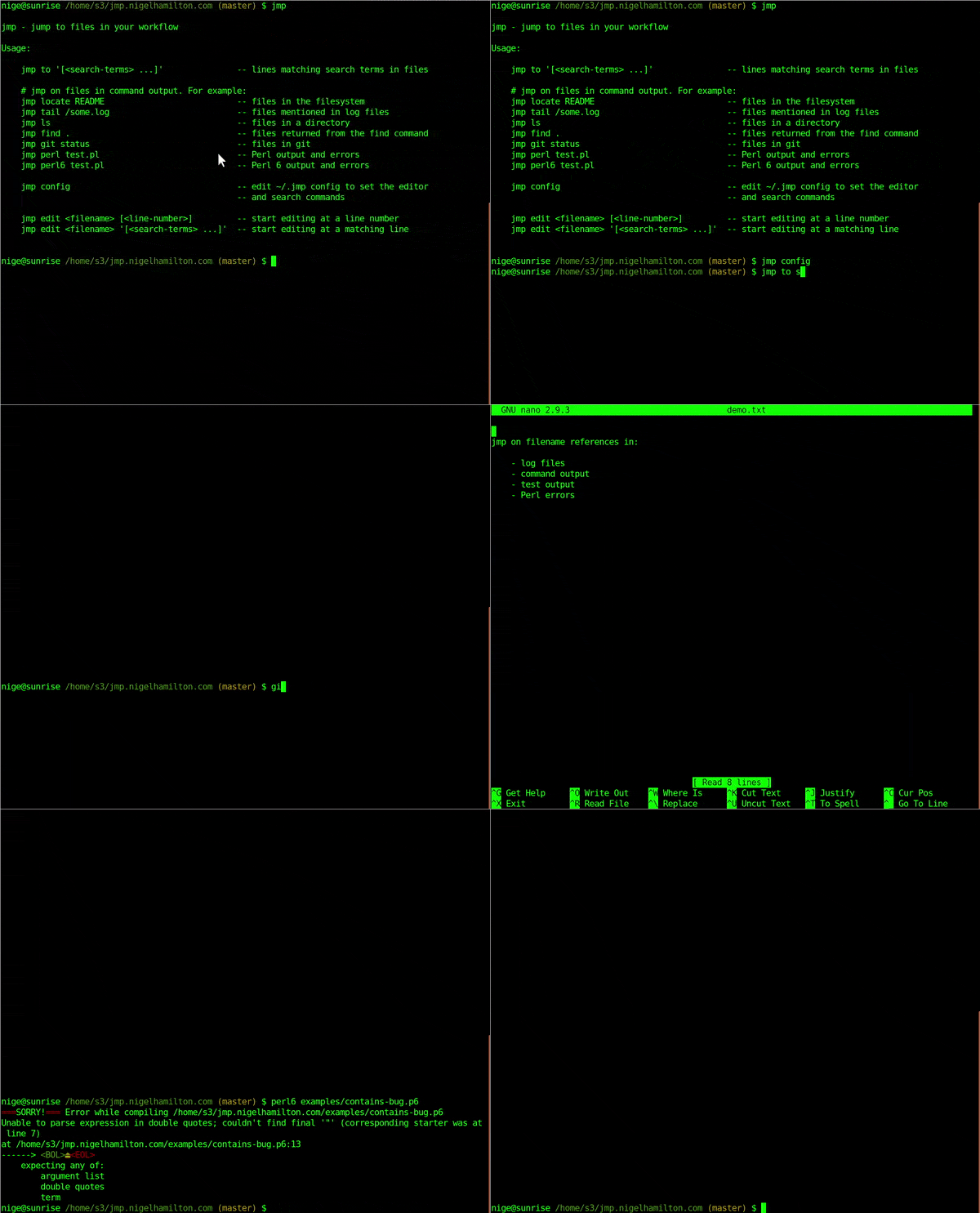
jmp                                         show most recent jmps
jmp in '[<search-terms> ...]'               search in files for matching lines
jmp to <filename>                           locate a file anywhere in the filesystem
jmp to <filename> <line-number>             jump to a specific line in a file

# jmp on files in command output. For example:
jmp on tail /some.log                       files mentioned in log files
jmp on ls                                   files in a directory
jmp on find .                               files returned from the find command
jmp on git status                           files in git
jmp on perl test.pl                         Perl output and errors
jmp on raku test.raku                       Raku output and errors

jmp config                                  edit ~/.jmp config to set editor and search commands
jmp help                                    show command help

jmp edit <filename> [<line-number>]         start editing at a line number
jmp edit <filename> '[<search-terms> ...]'  start editing at a matching line
Typical Use
Search the codebase and open the right match:
jmp in parser grammar token
Locate a file by name, anywhere on the filesystem:
jmp to README.md
Drive jmp from another command:
jmp on git status
jmp on rg TODO
jmp on prove -e raku t/
Open a file directly at a line:
jmp edit lib/JMP/UI.rakumod 120
TUI Keys
Inside the interface you can:
- move through hits with the arrow keys;
PageUp and l page through content - press
Enter or Right to preview the selected hit, and again to open it in your editor - press
Left to return from preview to results - press
i to search in files (jmp in ...) - press
o to run a command and jump on its output (jmp on ...) - press
t to locate a file on the filesystem (jmp to ...) - press
h or ? to show help in the preview pane - press
Esc to back out of prompts or leave the interface - press
q or x to quit
The results pane takes 35% of the terminal and the preview the rest. The footer shows where the cursor is, as current/total for the focused pane, then the actions, then the version.
Configuration
Run:
jmp config
This opens ~/.jmp, where you can configure the editor command, the search command used by jmp in and the locate command used by jmp to. Values need no quotes: jmp quotes the filename it hands to the editor itself, and strips any double quotes it finds in a value.
Release Notes
See CHANGES.md for release history.
Support